Set up AI drafts — bring your own key
RocketReply Web · about 2 minutes · screenshots show OpenRouter's own interface
RocketReply Web's AI features run on your own OpenRouter API key. Your key, your cost — about a cent per draft, billed by OpenRouter directly to you — and your messages go straight from your browser to OpenRouter, never through our servers. That's the whole reason for the key: we never see your conversations, and we never mark up your AI usage.
1. Create an OpenRouter account
Go to openrouter.ai and sign up with Google, GitHub, or email. This account only holds your key and credit.
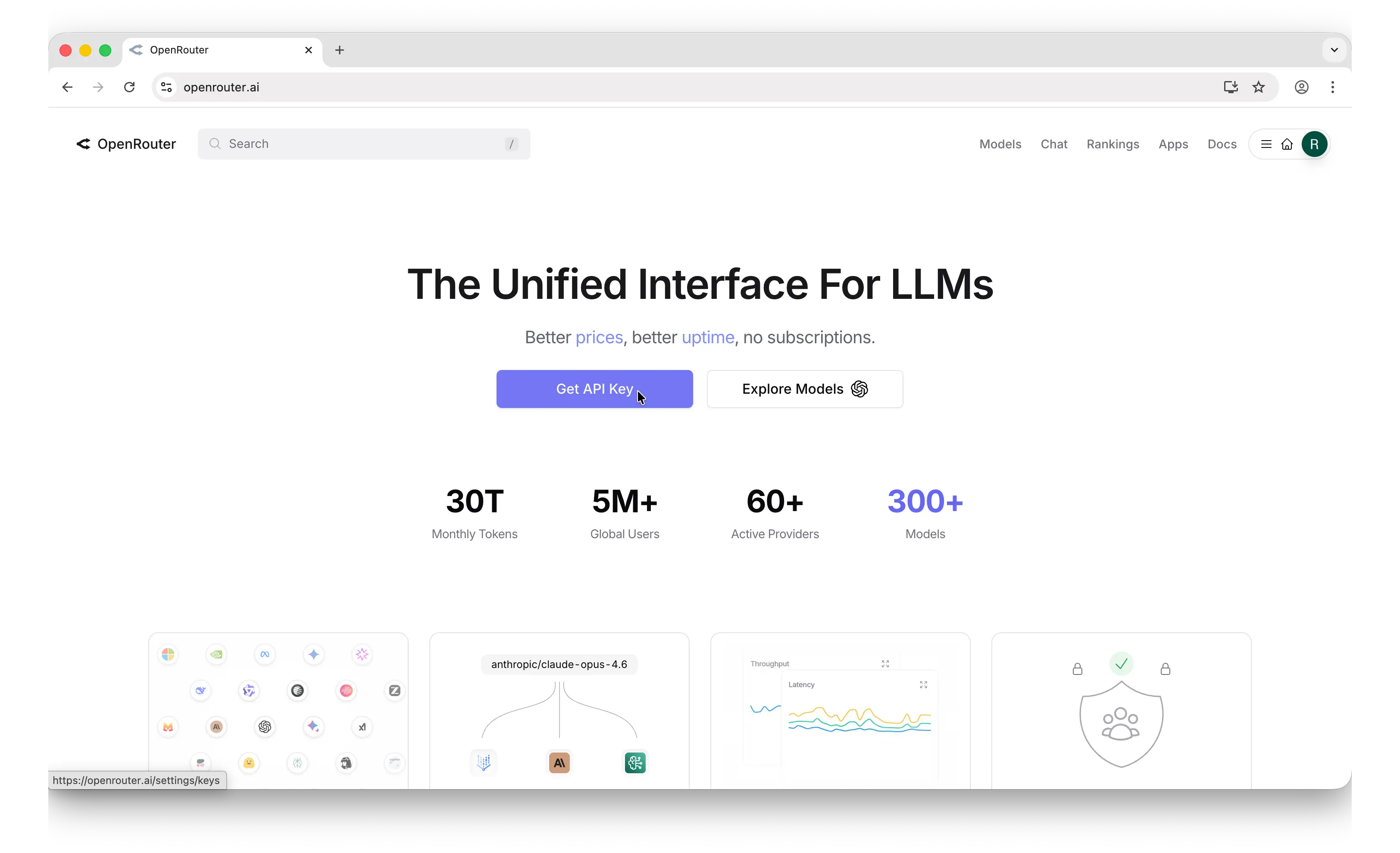
2. Open the API Keys page
Click your account icon (top right) → Settings → API Keys. Or skip the clicking: go straight to openrouter.ai/settings/keys.
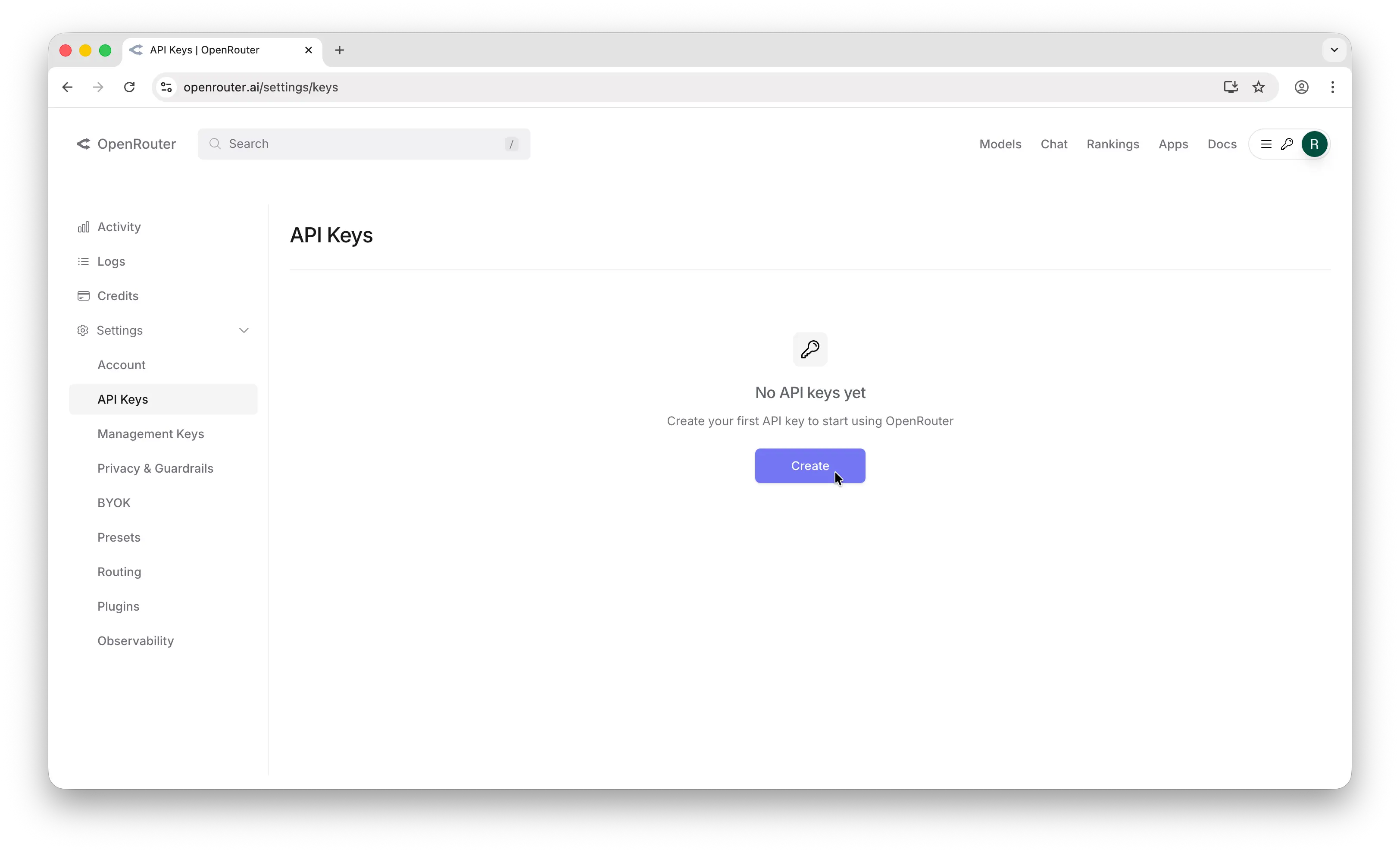
3. Create the key
Click Create Key. Name it something recognizable — rocketreply-web is a good one. The Credit limit field is your safety net: set a monthly cap and the worst case is capped by you, not us. Leave it blank for unlimited.
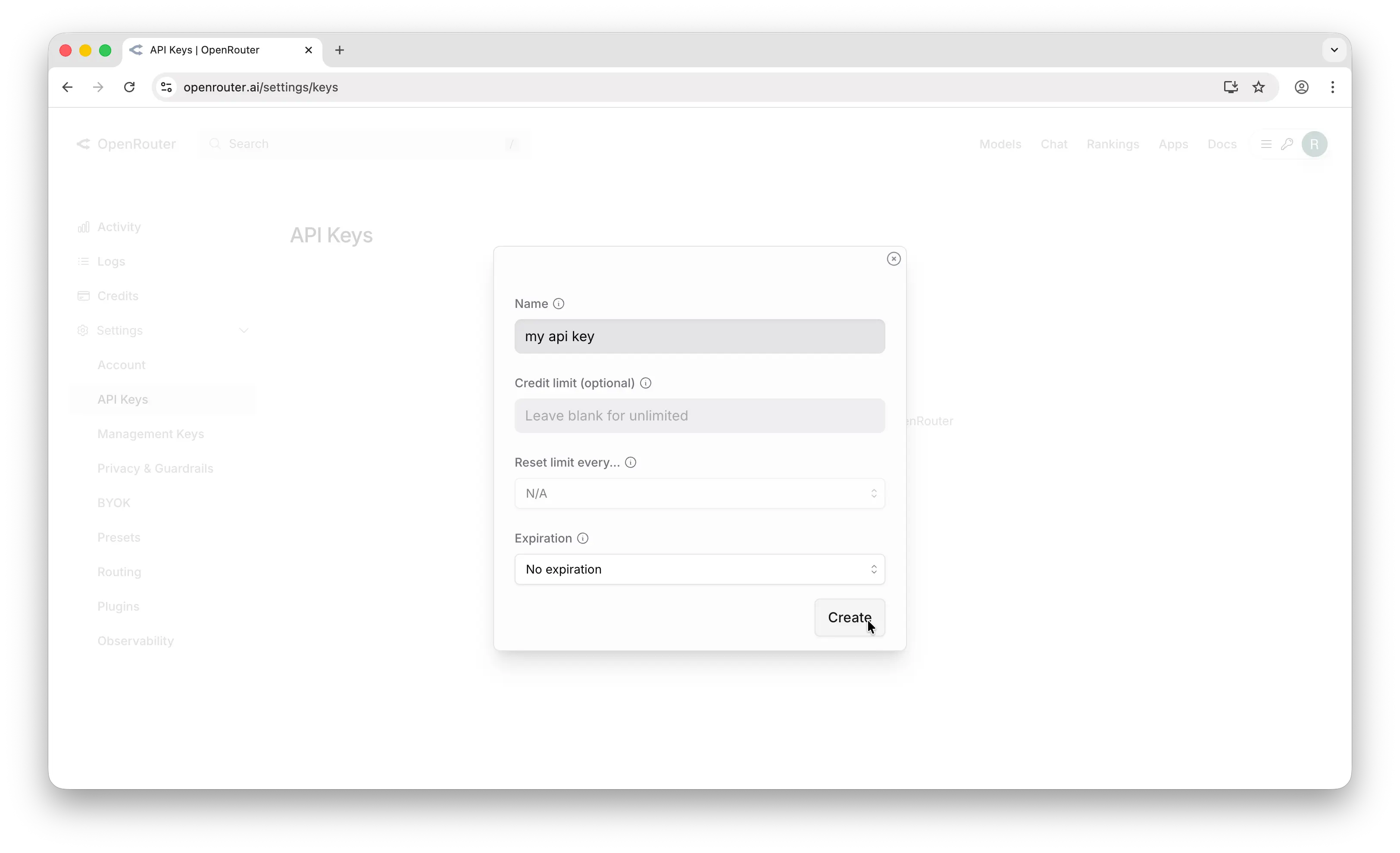
4. Copy the key — now, not later
The key is displayed once. It starts with sk-or-. Copy it now; if you lose it, no drama — delete the old key on that page and create another.
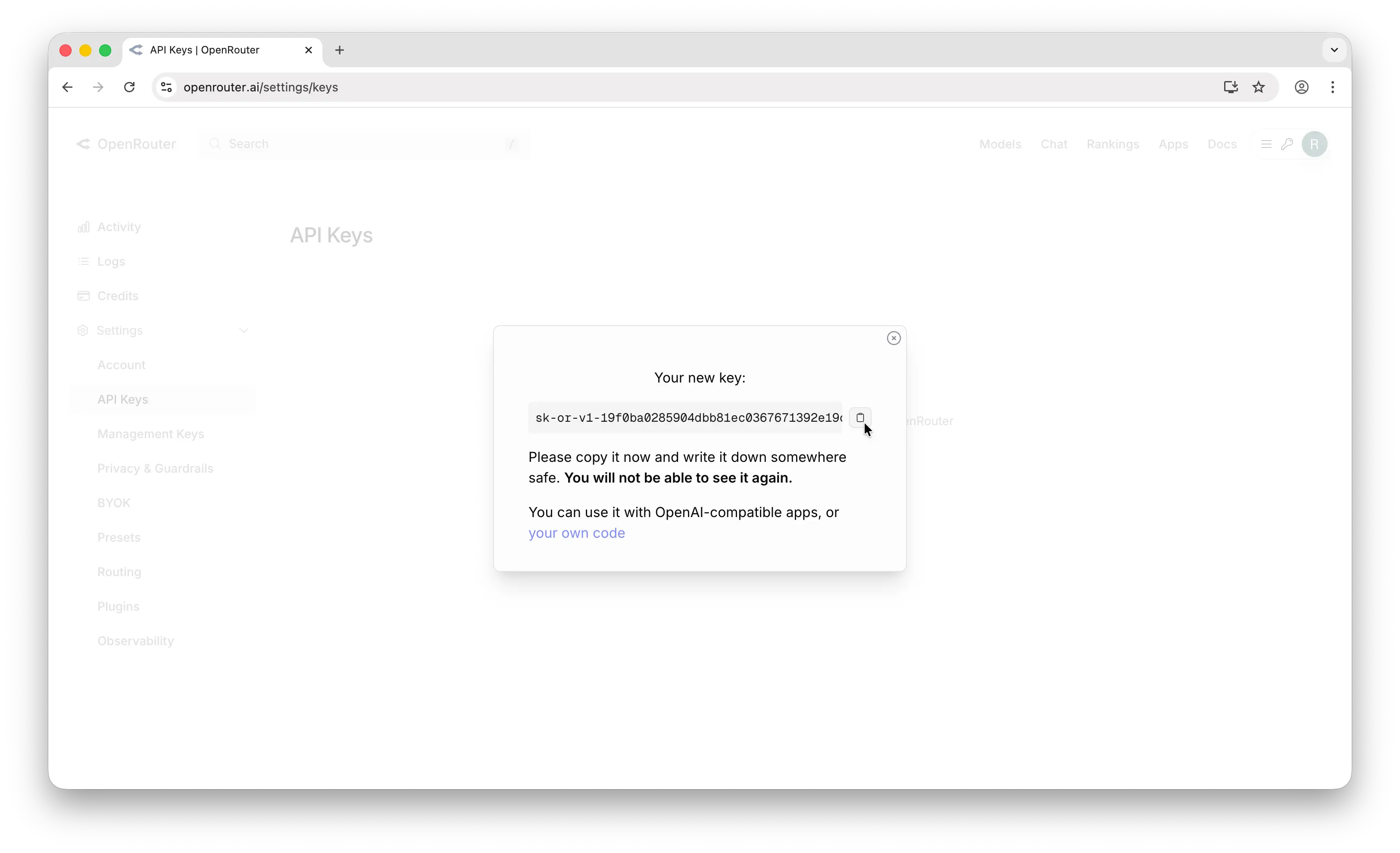
5. Paste it into RocketReply Web
Open WhatsApp Web → click the RocketReply icon in the top bar → AI tab → paste the key into the API key field and save. Tap the sparkle button beside the composer in any chat — your first drafts arrive in a few seconds.
Adding credit and staying in control
- Top up at openrouter.ai/settings/credits — a few dollars lasts weeks at a cent per draft.
- Set a monthly spend limit on the key itself and the worst case is capped by you.
- Delete the key at openrouter.ai/keys and the extension loses AI access instantly.
OpenRouter handles your request data under its own privacy policy — read it at openrouter.ai/privacy. What you're choosing with RocketReply Web is that we are never in that loop.
Questions: [email protected] · RocketReply Web · Extension privacy policy